

Available on: Starter+ | Role: Admin+ | Status: Generally Available
Overview
External source connections let you pull data from platforms your organization already uses — Google Drive, Confluence, SharePoint, Jira, GitHub, and hundreds more. Data syncs automatically via pre-built connectors.Connecting an External Source
1
Discover Connectors
Navigate to Workspace > Data Connections > Discover. Browse the connector catalog or search by name.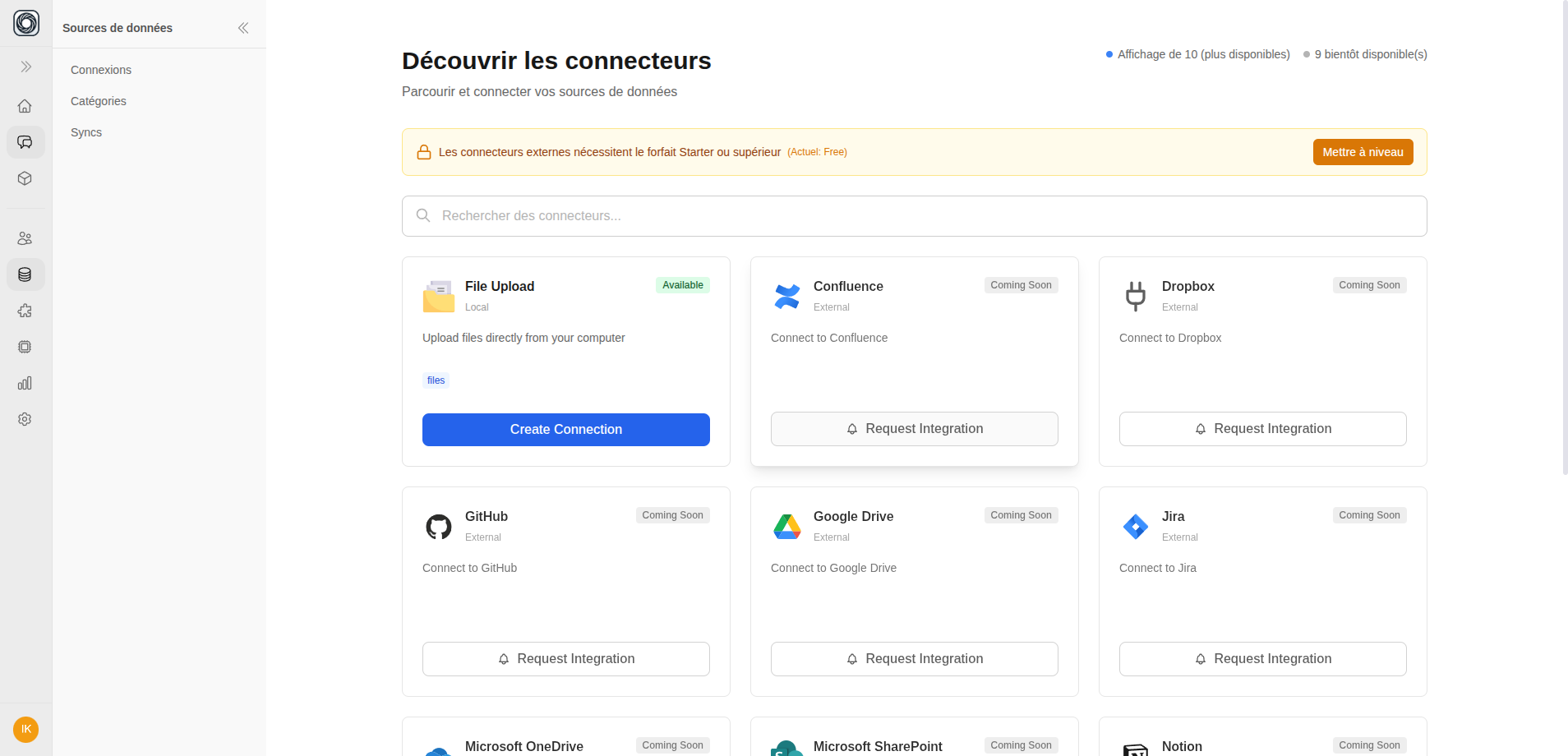 Connectors are labeled:
Connectors are labeled:- Available — Ready to connect
- Coming Soon — Planned, you can request early access
2
Configure the Connection
Select a connector and provide the required configuration:
- Connection name — A descriptive label
- Credentials — OAuth sign-in or API key, depending on the source
- Stream selection — Choose which data streams to sync (e.g., specific folders, projects, or spaces)
3
Initial Sync
After configuration, the connection begins its first sync. This pulls data from the external source and processes it for AI use.The sync progress shows in the Syncs dashboard.
4
Link to Teamspaces
Link the connection to teamspaces so the AI can use the synced data. Go to the teamspace settings and add the connection.
Browse connectors →
Open the connector catalog and start connecting an external source
Available Connectors
The catalog includes connectors for:Sync Behavior
- Incremental sync — Only new and changed data is pulled (CDC — Change Data Capture)
- Full sync — Complete refresh of all data from the source
- Sync schedule — Configurable automatic sync intervals
- Manual sync — Trigger a sync on demand