

Available on: All plans | Role: All users | Status: Generally Available
Overview
The chat interface is where you interact with AI assistants. Each conversation is scoped to a teamspace, giving the AI access to that teamspace’s documents and data sources. Responses stream in real time with citations linking back to the original sources.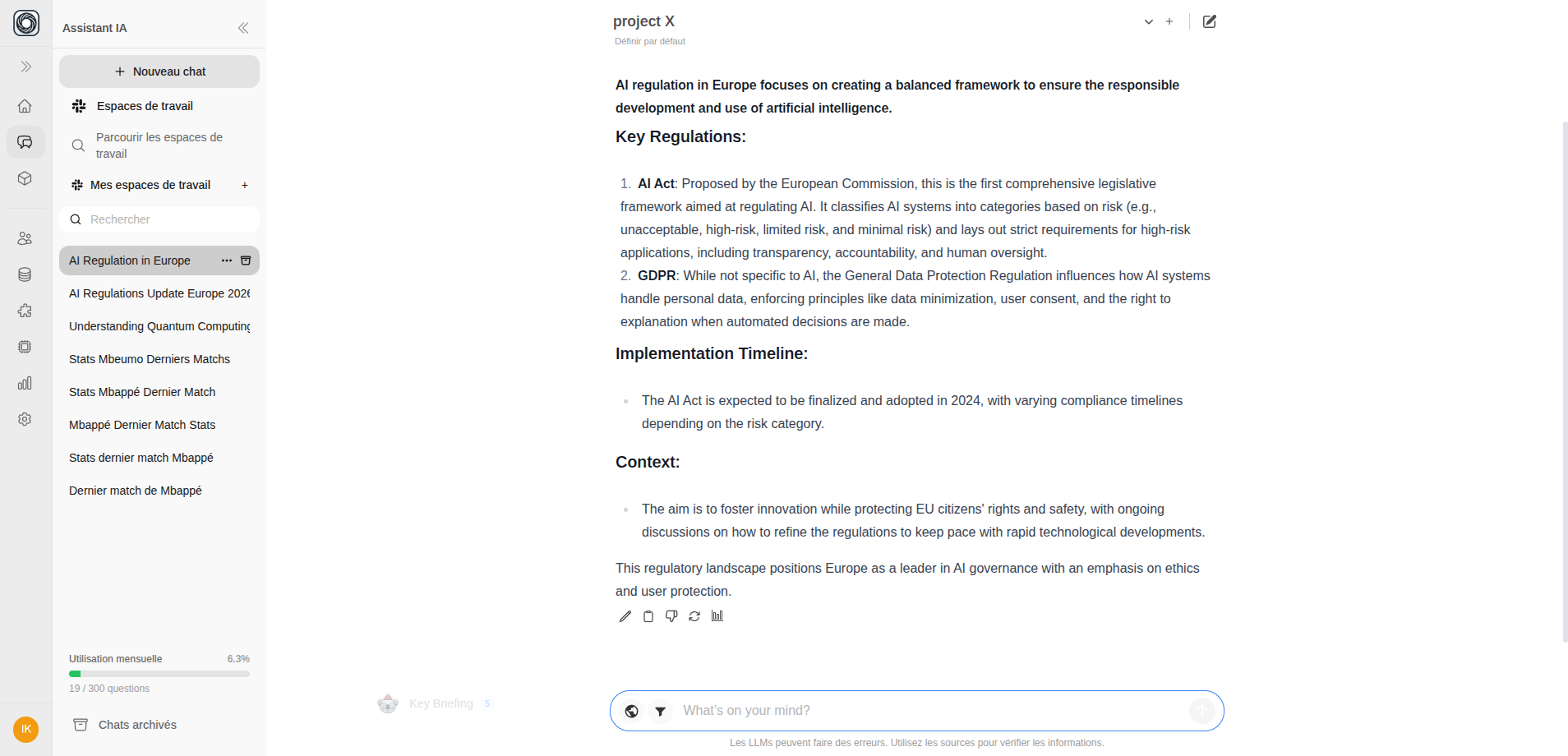
Starting a Conversation
1
Select a Teamspace
Use the teamspace selector in the navbar to choose which teamspace the AI should use. You can click Set as default on any teamspace to make it your default selection.
2
Type Your Message
Enter your question in the message input at the bottom of the screen. Press Enter to send, or Shift+Enter for a new line.You can also drag and drop files or paste images from clipboard directly into the message input to include them with your question.
3
Review the Response
The AI streams its response in real time. Look for citation badges:
- Blue badges
[1],[2]— document citations (click to view source) - Green badges
[W1],[W2]— web citations (click to open URL)
Prompt Suggestions
When you start a new conversation, the AI shows personalized prompt suggestions based on your teamspace and role. Click any suggestion to use it as your first message. After each AI response, you may also see follow-up suggestions — click these to continue the conversation in a related direction.Chat Commands
Type these characters at the start of your message to access special features:Using Prompt Templates (/)
Type / to browse saved prompt templates. Select one to insert its content into your message. Templates can include {{variables}} that you fill in — press Tab to jump between placeholders.
Referencing Documents (#)
Type # to search and select documents from your teamspace. This scopes the AI’s response to that specific file. You can also paste a URL with #https://... to reference a web document.
Running AI Boxes (@)
Type @ to see available AI Boxes. Select a box to run it within the conversation:
- Browse the box list (filtered by those you can trigger)
- Choose to start a new run or select from past completed runs
- The box executes and results appear in the chat
RAG Filters
Fine-tune which documents the AI searches when answering your questions.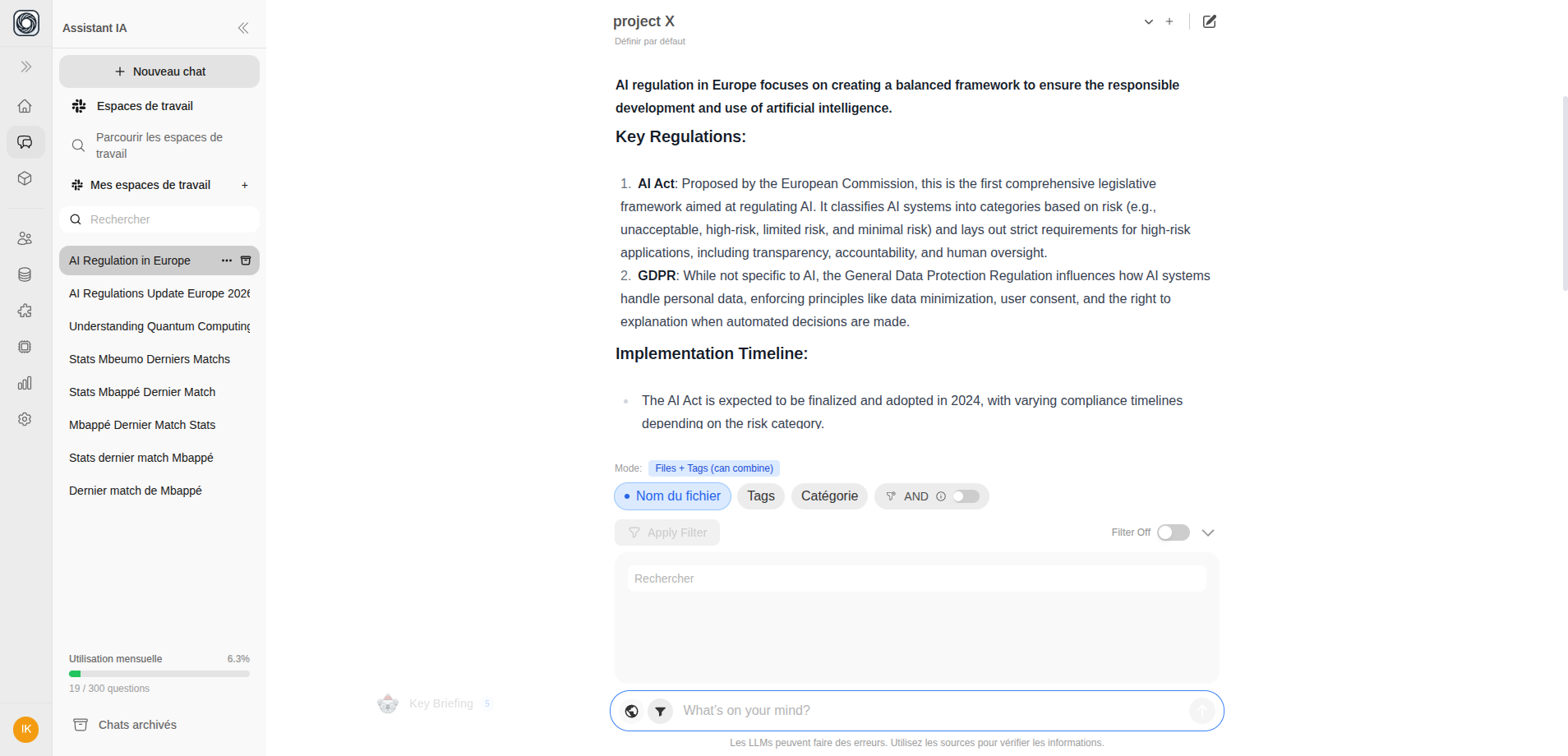 Click the filter icon in the message input toolbar to open the filter panel:
You can combine filters using AND (all conditions must match) or OR (any condition matches) logic.
Message Actions
Hover over any message to see available actions:On AI Responses
- Copy — Copy the response text to clipboard
- Edit — Modify the AI’s response
- Regenerate — Get a new response (or press Ctrl/Cmd+R)
- Rate — Mark a response as unhelpful to improve future answers
- View Sources — See which documents were used
- Generate Chart — Create a visualization from the data
- Navigate siblings — Browse alternative responses when you’ve regenerated
On Your Messages
- Edit — Modify and resubmit your message (creates a new branch)
- Copy — Copy your message text
- Delete — Remove the message (not available for the first message)
Conversation Branching
When you edit a previous message, the conversation creates a branch. You can navigate between branches using the arrow buttons on messages, letting you explore different conversation paths.Auto-Generated Titles
Conversations are automatically titled after your first exchange. The AI generates a concise title based on the content of your initial message and response. You can rename a chat at any time from the sidebar.Long Message Handling
Long AI responses (over 800 characters) are automatically collapsed with a Show more toggle. Click to expand and read the full response, or click Show less to collapse it again.Query Limits
Your plan determines how many AI queries you can make per month. When you approach or reach your limit, you’ll see a notification prompting you to upgrade. See Plans & Pricing for details.Chat History
Your conversations are saved in the sidebar. You can:- Search — Find past chats by keyword
- Archive — Hide chats from the main list (still accessible via archived chats)
- Delete — Permanently remove a conversation
- Tag — Organize chats with custom tags
- Share — Create a public link to share a conversation