

Available on: All plans | Role: Admin+ | Status: Generally Available
Overview
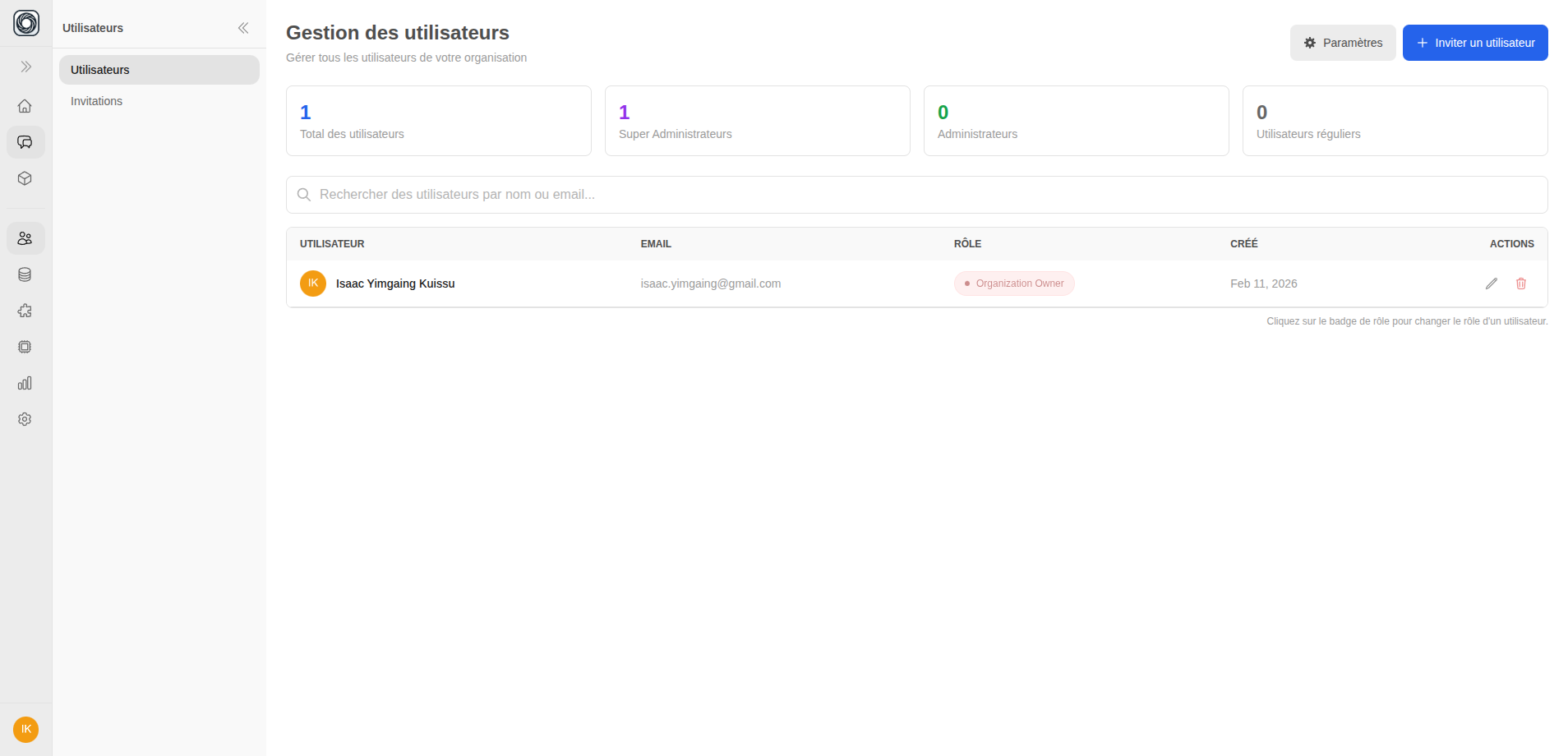
User management lets you control who has access to your Mnemetic organization. Invite new members, assign appropriate roles, and remove users when needed.Viewing Members
Navigate to Workspace > Users to see all organization members. Each member card shows:- Name and avatar
- Email address
- Role (Owner, Admin, User, Pending)
- Last active date
Inviting Members
1
Open the Invite Form
Click Invite Member on the Users page to open the invitation form.
2
Enter Details
Fill in:
- Email address — The invitee’s email
- Role — Admin or User
- Teamspaces — Optionally pre-assign teamspaces with permission levels
3
Send Invitation
Click Send. The invitee receives an email with a signup link. You can also copy the invitation link to share directly.
Invite team members →
Open User Management and start inviting your team
Managing Roles
Click a member’s role badge to change their role:Removing Members
1
Click Remove
On the member card, click the Remove button.
2
Review Impact
A preview modal shows what will be affected:
- Teamspaces the member owns or belongs to
- Data connections they created
- Access grants they’ve given or received
3
Confirm Removal
Click Confirm to remove the member from the organization.